How This ChatGPT Photo Editing Prompt Became Viral on Instagram
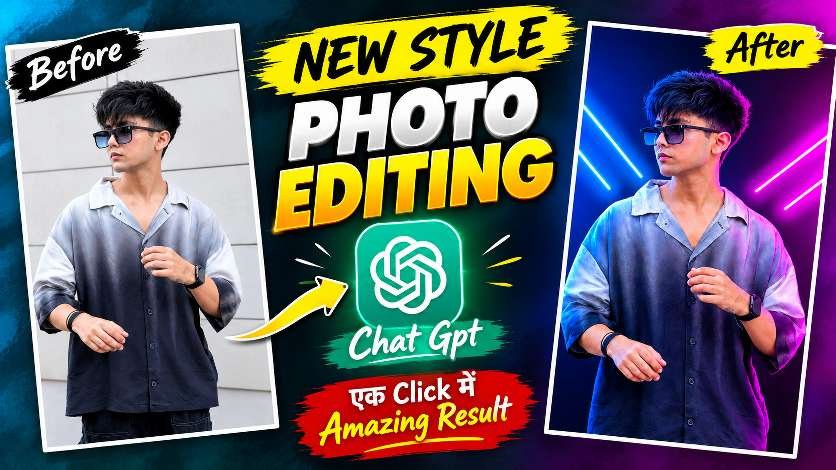
How This ChatGPT Photo Editing Prompt Became Viral on InstagramA new ChatGPT photo editing prompt is trending across Instagram Reels and YouTube Shorts. Creators are transforming ordinary selfies into eye-catching neon portraits with just one AI prompt. The “Before vs After” editing style has become popular because it creates a premium, cinematic look without using complex editing apps. Thousands of users are sharing this effect, making it one of the biggest AI photo editing trends of 2026.
This editing style completely changes the mood of a photo while keeping the person’s face natural and realistic. The background is replaced with glowing blue and pink neon lights, skin tones look smooth, colors become vibrant, and the portrait gets a stylish professional finish. The result looks similar to photos created by high-end photographers, making it perfect for Instagram profile pictures and viral posts.
How ChatGPT Prompt Creates the Before and After Effect
The magic of this trend is a detailed ChatGPT prompt. Users upload their original photo and use the prompt to describe the desired editing style. ChatGPT helps generate a realistic AI-edited version with dramatic lighting, modern color grading, sharp details, and a glowing background while preserving the person’s identity. This simple prompt saves time compared to manual editing.
Why Instagram Creators Love This AI Editing Trend
Instagram creators love this trend because the edited photos instantly grab attention in the feed. The bright neon colors, stylish lighting, and premium look increase engagement on Reels, Stories, and posts. Many influencers are using this editing style for thumbnails, profile photos, and fashion content because it looks unique and modern.
Tips to Get the Best Result from the ChatGPT Prompt
For the best output, upload a clear, high-quality portrait with good lighting. Keep the face fully visible and avoid blurry images. A front-facing or slightly side-facing pose works well for this trend. The AI can then enhance the background, lighting, and overall style while keeping the face natural and realistic.
Download preset ⬇️
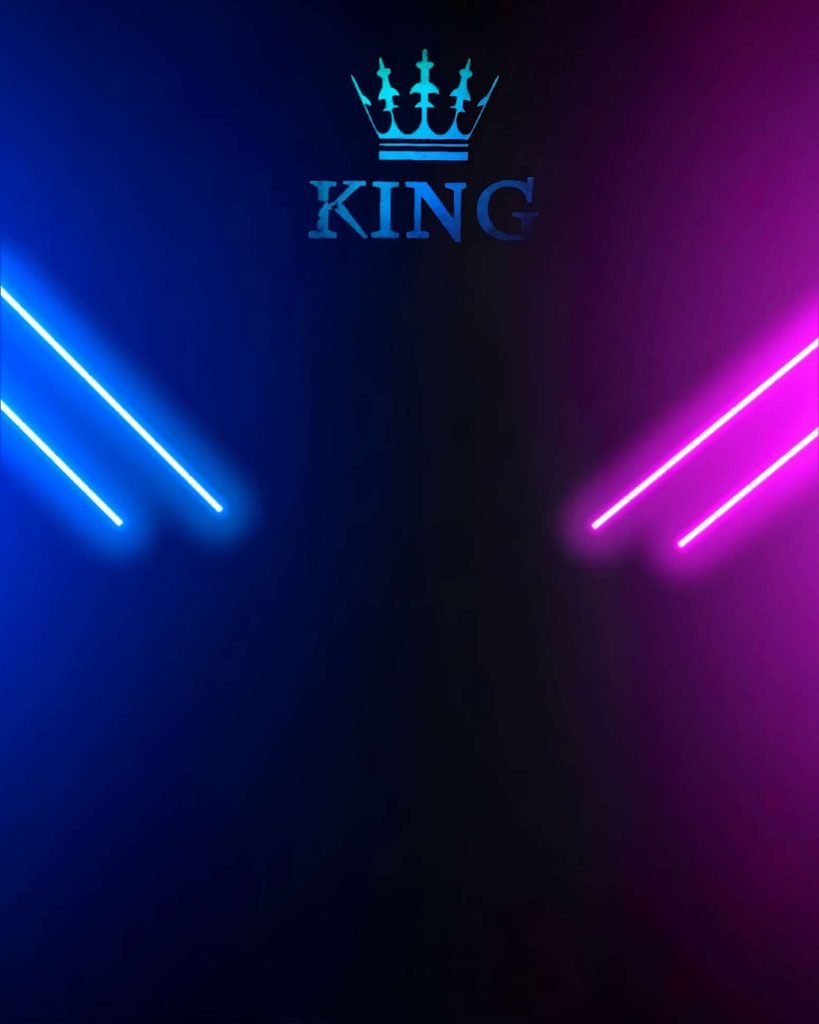
Use exactly 2 uploaded images: Image 1 is the exact empty master background and Image 2 is the audience member’s own photo/person. Image 1 has absolute priority as the fixed master background: preserve every existing background detail exactly as provided, including the dark blue-to-magenta neon atmosphere, diagonal blue/pink light bars, crown element and “KING” text/design, their exact position, size, shape, colors, glow, lighting and overall composition. Do not regenerate, redesign, replace, move, remove, cover, resize or alter any part of Image 1, and do not add any new text, logo or watermark. The only editing subject is the person from Image 2. First accurately isolate the person from the original Image 2 background, completely removing walls, trees, vehicles, people, objects, scenery, background colors and every unwanted fragment. Make the cutout extremely precise around hair strands, flyaway hair, ears, face, shoulders, hands, fingers, clothing and all body edges, with no leftover background, halo, white/black outline, rough edge or pasted-cutout appearance. Preserve the person’s identity, face structure, natural skin tone, hairstyle, hair details, clothing color/design/pattern/style, body proportions and important original features. Analyze Image 2 automatically because audience photos may be selfie, close-up, half-body, full-body, cropped, distant, tilted, side-angle, low-quality, dark, blurry or taken with a mobile camera. Automatically choose the best crop, visible body area, scale, position, perspective, depth and framing so the person matches the visual style and composition of the provided PicsArt reference. For full-body Image 2 photos, do not make the person oversized or fill too much of the frame; use a slightly smaller, balanced subject scale matching the PicsArt reference while keeping the person clearly visible and naturally prominent. Do not force the person upward toward the crown or “KING” text. Maintain a clearly visible, comfortable and natural breathing gap between the top of the person’s head/hair and the “KING” design above; the person must never look stuck to, touching, overlapping or crowding the KING area. If needed, after selecting the correct smaller scale, position the person slightly lower to create the same balanced vertical spacing seen in the PicsArt reference, while still keeping the full-body composition natural and strong. Keep enough open space on both the left and right sides of the person so the original blue neon light on the left and pink neon light on the right remain clearly visible and are not blocked or crowded by the subject. Do not make the person so wide or large that the side neon lights disappear. Make the result look as if the person was naturally photographed inside the original neon environment, not inserted afterward. Regardless of whether Image 2 is a mobile selfie, ordinary phone photo, portrait, half-body, full-body, distant shot, tilted shot, low-quality shot or a photo containing its original surroundings, the final result must look like a genuine photograph captured of that person directly inside the Image 1 environment, never like a background-removed sticker, pasted cutout, AI collage or artificial composite. Automatically recreate natural camera perspective, subject scale, depth, framing, lighting interaction and realistic scene presence according to the PicsArt reference. Preserve the original pose whenever it already works naturally. Never change a good or suitable pose just for the sake of changing it. If the original pose is genuinely unsuitable because the photo is badly framed, awkward, seated, extremely unusual or impossible to fit naturally, intelligently correct or adapt the pose only as much as necessary, while preserving identity, clothing, body proportions and realistic anatomy. If the photo is cropped or missing required body areas, intelligently complete only the necessary missing portions with realistic anatomy and matching clothing; never create unnecessary reconstruction. Prevent malformed hands, fingers, feet, face or body. If the image quality is poor, intelligently improve resolution, sharpness, exposure, contrast, noise, clarity and overall photographic quality to approach the clean HD professional quality of the PicsArt reference, but never make the face plastic, over-smoothed, artificial or AI-looking. If the photo is already high quality, preserve it and avoid unnecessary regeneration or quality changes. Match the person naturally to Image 1 with the same type of blue and pink neon illumination seen in the PicsArt reference. Use a medium, subtle and realistic neon light spill rather than a weak effect or excessive glow. The blue light should naturally fall onto the left-facing side of the person, including hair, a small amount of the face, shoulder and clothing, while the pink light should naturally fall onto the right-facing side, including hair, a small amount of the face, shoulder and clothing. The colored light must actually appear on the person, not remain only around the body. Keep the face effect lighter and subtle, while allowing the colored reflection to be slightly more noticeable on hair, shoulders and clothes. Do not create a separate glowing outline around the body, do not over-saturate the skin or clothes, and do not make the lighting look like a colored filter. The neon light must look like real light physically coming from the surrounding Image 1 lights, with natural falloff and realistic reflections. Maintain realistic perspective, depth, edge blending and overall scene integration. Preserve natural hair strands while removing the original background completely. The final result must strongly match the supplied PicsArt reference in subject scale, central placement, comfortable gap below the KING design, balanced left/right neon-light visibility, framing, realistic blue/pink light interaction, clarity, polish and professional visual finish, while using Image 1 as the unchanged master background and Image 2 as the only source for the audience person. Adapt intelligently to every different audience photo instead of forcing one fixed crop, pose or body framing. Final output: portrait 4:5, 1080×1350, HD, sharp, clean, premium and realistic, with no artificial-looking face, distorted anatomy, unwanted objects, extra people, leftover background, halos, outlines, blur, artifacts, extra text or watermark.
Conclusion
The New Style Photo Editing ChatGPT Prompt is one of the hottest Instagram viral trends right now. It allows anyone to create stunning before-and-after AI portraits in seconds with a professional neon editing style. If you want your Instagram photos to stand out and look trendy, this ChatGPT prompt is definitely worth trying.