Transform Your Normal Photo into a Viral Instagram Edit
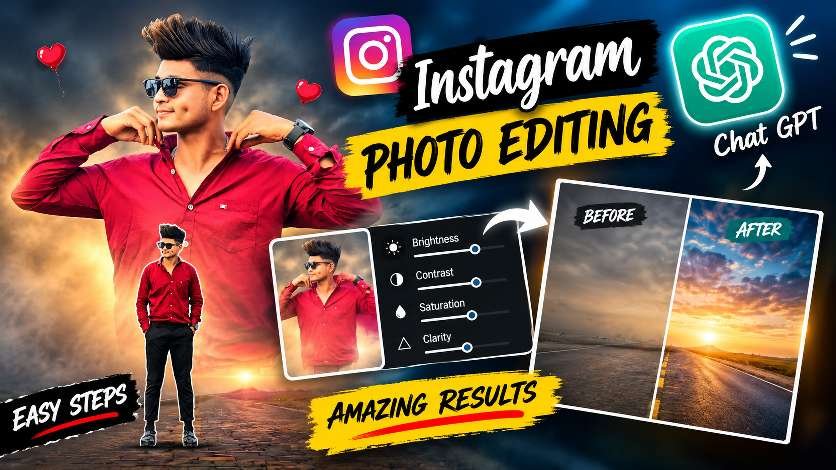
Instagram is filled with amazing AI photo edits, and one style is becoming incredibly popular. People are turning simple photos into cinematic portraits with glowing colors, foggy backgrounds, and professional lighting using ChatGPT. This editing style looks premium and grabs attention instantly, making it perfect for Instagram Reels, Stories, and profile posts.
Why This Editing Style Is Trending on Instagram
The biggest reason this trend is going viral is its unique visual effect. A normal selfie suddenly looks like a movie poster with dramatic lighting, stylish color grading, and a high-quality background. Thousands of creators are using this AI editing style because it makes their photos stand out in the Instagram feed and increases engagement on posts and reels.
Create Stunning AI Photos with ChatGPT
ChatGPT can help create creative photo edits from a single image. By using the right editing prompt, your picture can get a soft cinematic background, colorful sky, fog effect, glowing highlights, and sharp portrait quality. The final image looks professionally edited even if the original photo was taken with a normal smartphone.
Make Your Instagram Profile Look Premium
A beautiful profile always attracts more visitors. AI-edited photos give your Instagram page a stylish and consistent look. Whether you want a romantic edit, aesthetic portrait, attitude photo, or trendy fashion style, ChatGPT can create eye-catching results that match the latest Instagram trends.
Before and After AI Editing is Getting Millions of Views
Before-and-after transformations are one of the most watched Instagram reel formats. Showing the original photo first and then revealing the edited version creates a surprising effect that keeps viewers watching until the end. This is why many creators are using ChatGPT editing videos to reach more people and gain followers.
DOWNLOAD PRESET ⬇️
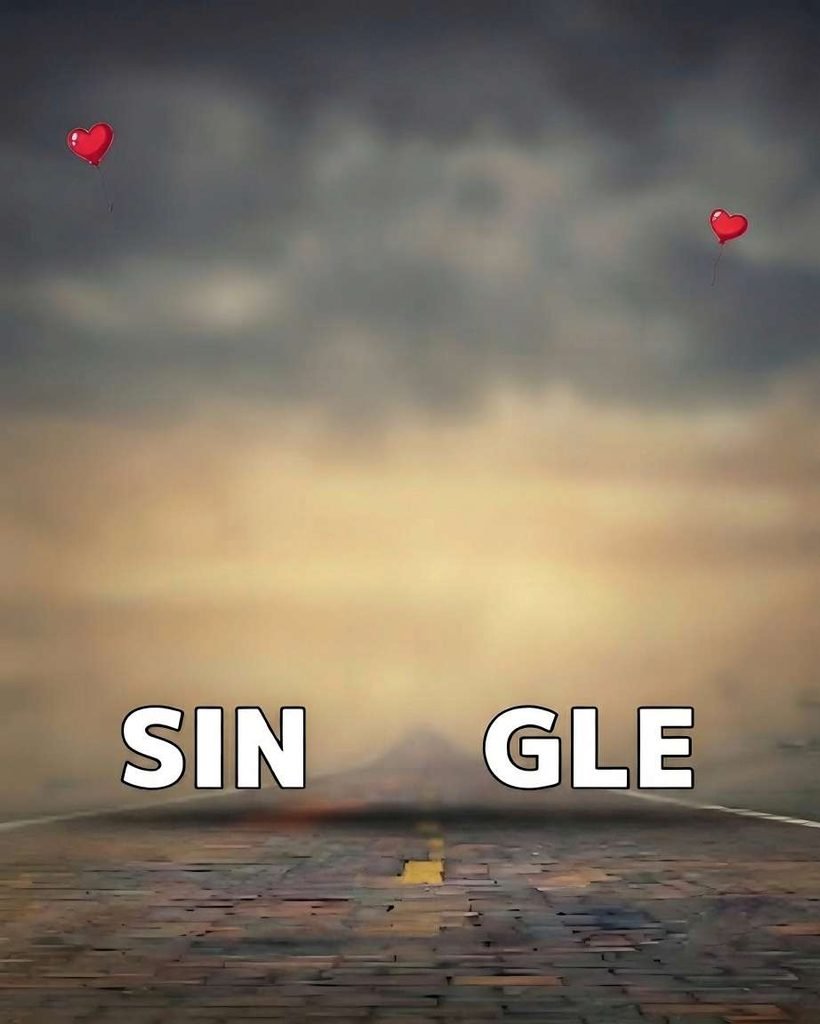
🚀 Use the uploaded images according to the following rules. If 3 images are provided, Image 1 is the exact master background, Image 2 is the person for the large upper subject, and Image 3 is the person for the smaller lower full-body subject. If only 2 images are provided, Image 1 is the exact master background and Image 2 is the single person photo; intelligently use that same person photo to create both the large soft/blended upper version and the smaller clear full-body lower version, matching the supplied PicsArt reference composition. Image 1 is the highest-priority master background and must remain completely unchanged: preserve the original sky, blur, road, both red heart balloons, “SINGLE” text, position, size, design, colors, lighting and every existing background detail exactly as provided; do not regenerate, redesign, move, remove, replace or alter any background element, and do not add any new text, logo or watermark. Accurately isolate the person from the original background of Image 2 and Image 3 before compositing, removing every part of their old background, including complicated objects, trees, vehicles, crowds, walls, fences, sky, ground and background color spill. Perform extremely precise subject extraction around hair, individual hair strands, curly/flyaway hair, ears, face, neck, shoulders, fingers, hands, arms, clothing edges, body gaps, legs, feet, shoes and accessories; preserve fine details and never leave white/black halos, rough edges, leftover background fragments, glow, outlines or color contamination. If clothing and background have similar colors, still preserve the complete clothing silhouette, folds, patterns, logos, embroidery, prints and details. Preserve phones, watches, glasses, bags, jewelry, caps, masks, helmets and all other original accessories. Keep any face-covering item exactly as provided and never invent or alter hidden facial areas unnecessarily. Preserve each person’s exact identity, face structure, natural facial features, hairstyle, hair color, skin tone, clothing, clothing colors/designs, accessories, body proportions and natural expression. Do not make faces fairer/darker, add beauty filters, makeup, artificial facial features or unnecessary retouching. If an input photo is blurry, dark or low quality, improve clarity naturally only when needed while keeping the person’s real identity and appearance unchanged; if the photo is already good quality, do not unnecessarily enhance or alter it. For Image 2, create the large upper subject exactly in the visual style and composition of the supplied PicsArt reference. IMPORTANT: the upper Image 2 subject must be positioned clearly LOWER than the previous result, not high near the top of the frame. Move the entire upper subject downward into the central composition by approximately 10–15% of the image height, while keeping it horizontally perfectly centered. At the same time, make the upper Image 2 subject noticeably more zoomed-in and larger than the previous result, approximately 15–20% larger in overall scale, so it looks more prominent and visually powerful like the PicsArt reference. The downward movement and zoom must be clearly visible, not a tiny adjustment. The upper subject should sit closer to the lower Image 3 person, with the lower portion of the softly blended upper subject extending naturally behind the lower person, creating the correct layered depth seen in the PicsArt reference. Do not place the upper person too high or leave excessive empty space above the person. Scale the upper subject proportionally from its center without stretching, squeezing or distorting the body. Keep the head and face naturally inside the frame; never crop the head, hair or face unnaturally. Automatically choose the most suitable crop/framing for different audience photos while maintaining this clearly lower and slightly more zoomed composition. The upper person should remain slightly behind the lower person. Keep the upper subject softly and naturally blended into Image 1 with the same subtle opacity, softness and visibility as the PicsArt reference; do not make it excessively transparent, faded or blurry. Keep the upper face appropriately clear and recognizable while maintaining the soft blended appearance. Preserve natural hair strands and create a very subtle edge feather only where necessary so the subject looks naturally integrated rather than pasted on, while keeping hair and clothing details sharp. If Image 2 is a selfie, half-body or cropped photo, intelligently complete only the required shoulder/body areas when necessary, using the visible person as the primary reference and naturally continuing the original clothing, proportions and appearance without changing the face or identity. For Image 3, place the person smaller at the bottom center in the foreground exactly like the PicsArt reference. If Image 3 is already a proper full-body photo with clear feet, preserve the original pose, body, clothing and footwear without unnecessary reconstruction; only adjust size, position and perspective to fit the scene. If Image 3 is cropped, incomplete or missing hands, legs, feet or other body areas, intelligently and naturally complete only what is necessary using the person’s original appearance, proportions, clothing, pose and visual details as reference. Continue the clothing naturally and preserve its original colors and design. If footwear is missing, naturally complete realistic footwear appropriate to the person’s existing outfit and appearance, preferably shoes rather than generic slippers unless the original photo clearly indicates otherwise. Keep the lower person completely clear, sharp and realistic, with clean natural edges and absolutely no white/black outline. Preserve the natural pose whenever possible; do not unnecessarily straighten, reshape or distort the person. Automatically adapt the lower person’s size, position, distance and perspective for every different audience photo while maintaining the same balanced visual appearance as the PicsArt reference. Make the lower person’s feet genuinely contact the road with correct scale, perspective, placement and a subtle realistic contact shadow so the person never appears floating or disconnected. Keep the lower person’s shadow subtle and natural, never dramatic. Make both subjects look as though they were photographed in the same real scene with the same camera: naturally match Image 1’s perspective, depth, exposure, brightness, contrast, color balance and lighting. If the two source photos have different brightness or lighting, adjust them automatically but subtly to match the background and PicsArt reference; never over-brighten, over-darken, over-contrast or add excessive artificial light. Preserve natural skin tones. If Image 2 and Image 3 have different camera angles, adapt them naturally to Image 1’s perspective without stretching, compressing or distorting their bodies. If a person is slightly tilted, preserve the natural pose while fitting the perspective correctly. Prioritize realistic proportions at all times: never make the head, face, hands, arms, legs or body unnaturally large, small, stretched or compressed. Keep Image 2 behind Image 3 in depth and keep Image 3 clearly in front. Ensure important background elements such as the red heart balloons and “SINGLE” text remain visible and unchanged, avoiding unnecessary obstruction by the subjects. Do not change Image 3’s current successful size, position, pose, sharpness, grounding or composition while correcting Image 2. For different audience photo resolutions, portrait/landscape framing, selfies, cropped photos, dark photos, blurry photos, complicated backgrounds or already-perfect full-body photos, automatically choose the correct extraction, reconstruction, crop, scale, placement, perspective, lighting and blending required for the best possible result without applying unnecessary changes. The final image must look like one authentic, premium, highly realistic photograph rather than an AI-generated composite or pasted cutout, closely matching the user’s PicsArt reference in composition, softness, depth and overall visual balance. Do not introduce any creative changes that were not requested. Output exactly 1080×1350 pixels in 4:5 Instagram portrait format, with maximum realistic detail, clean edges, natural integration, sharp subject details and high-quality professional finishing.
Final Thoughts
Instagram Photo Editing with ChatGPT is one of the hottest AI trends right now. It is simple, creative, and gives professional-looking results in just a few steps. If you want your Instagram photos to look stylish, modern, and viral, this AI editing trend is definitely worth trying.